How to Set Up Custom Controls in Genshin Impact: PC, Mobile & PlayStation Guide
Master Genshin Impact custom controls to enhance gameplay with smoother rotations and reduced hand strain. Unlock platform-specific remapping for precise inputs and a tailored layout that fits your playstyle perfectly.
If Genshin Impact’s default controls have ever made your rotations feel clunky or your hands tired halfway through a session, you’re definitely not alone. The game asks for pretty precise inputs, especially in Spiral Abyss runs where one missed swap or delayed Burst can throw off the whole setup. Once you learn how to set up custom controls in Genshin Impact on PC, mobile, or PlayStation, the difference is honestly pretty noticeable: cleaner inputs, less strain, and a layout that actually fits how you play.
How to Set Up Custom Controls in Genshin Impact
Customizing controls in Genshin Impact isn’t the same across every platform. PC gives you the most freedom by far, while mobile and PlayStation are a bit more restricted and rely more on layout adjustment or system-level remapping. As of 2026, HoYoverse has expanded the options compared to earlier versions, but the gap is still there: PC remains the best platform for full remap flexibility.
Platform-Specific Settings Paths
Getting to the control menu depends on what you’re playing on.
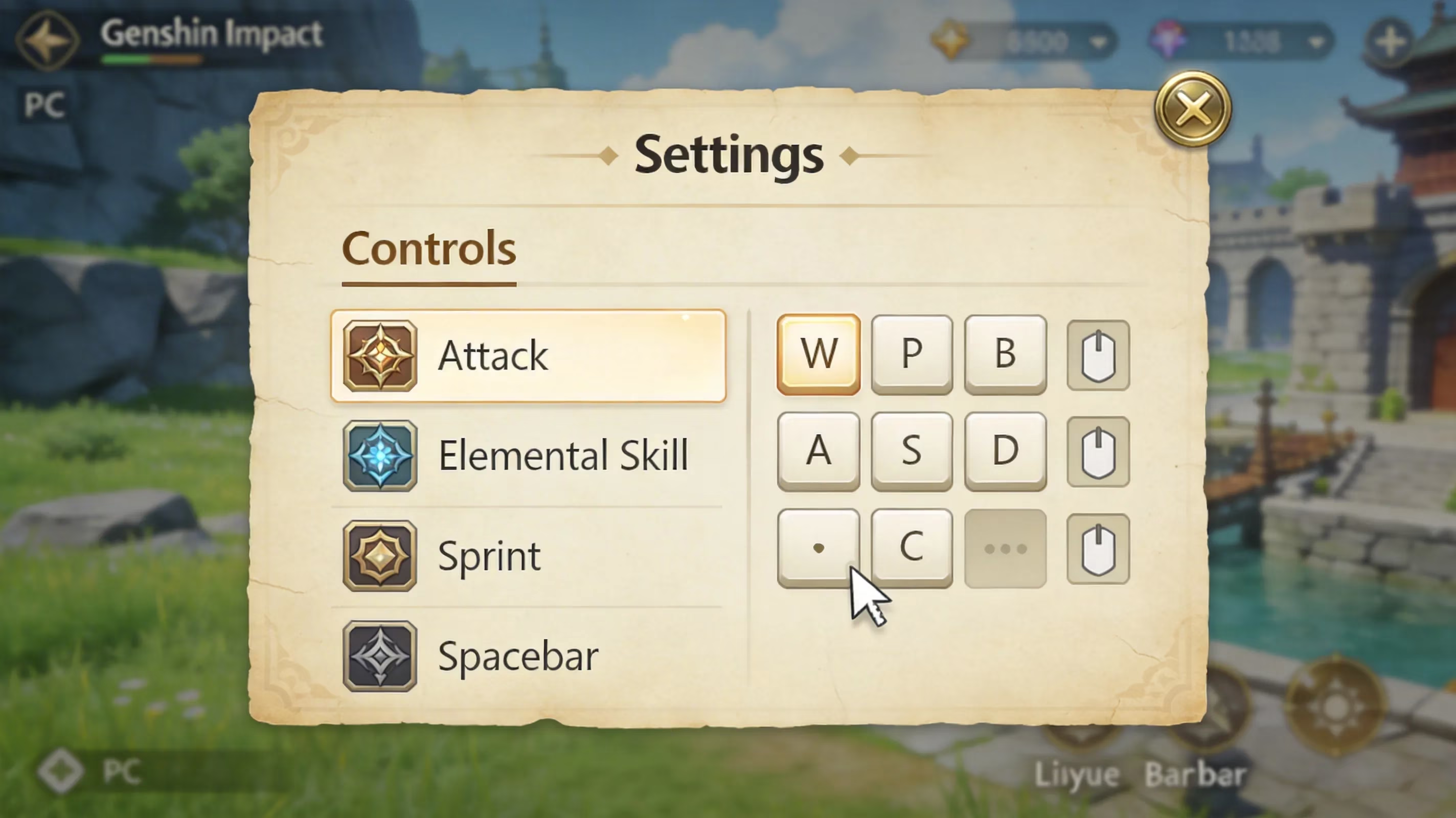
On PC, open the Paimon menu in the top-left corner, head into Settings, then choose Controls. From there, you’ll usually see separate sections for keyboard, controller if one is connected, and mouse sensitivity. The menu is split clearly enough, so movement, combat, and utility shortcuts are easy to find.
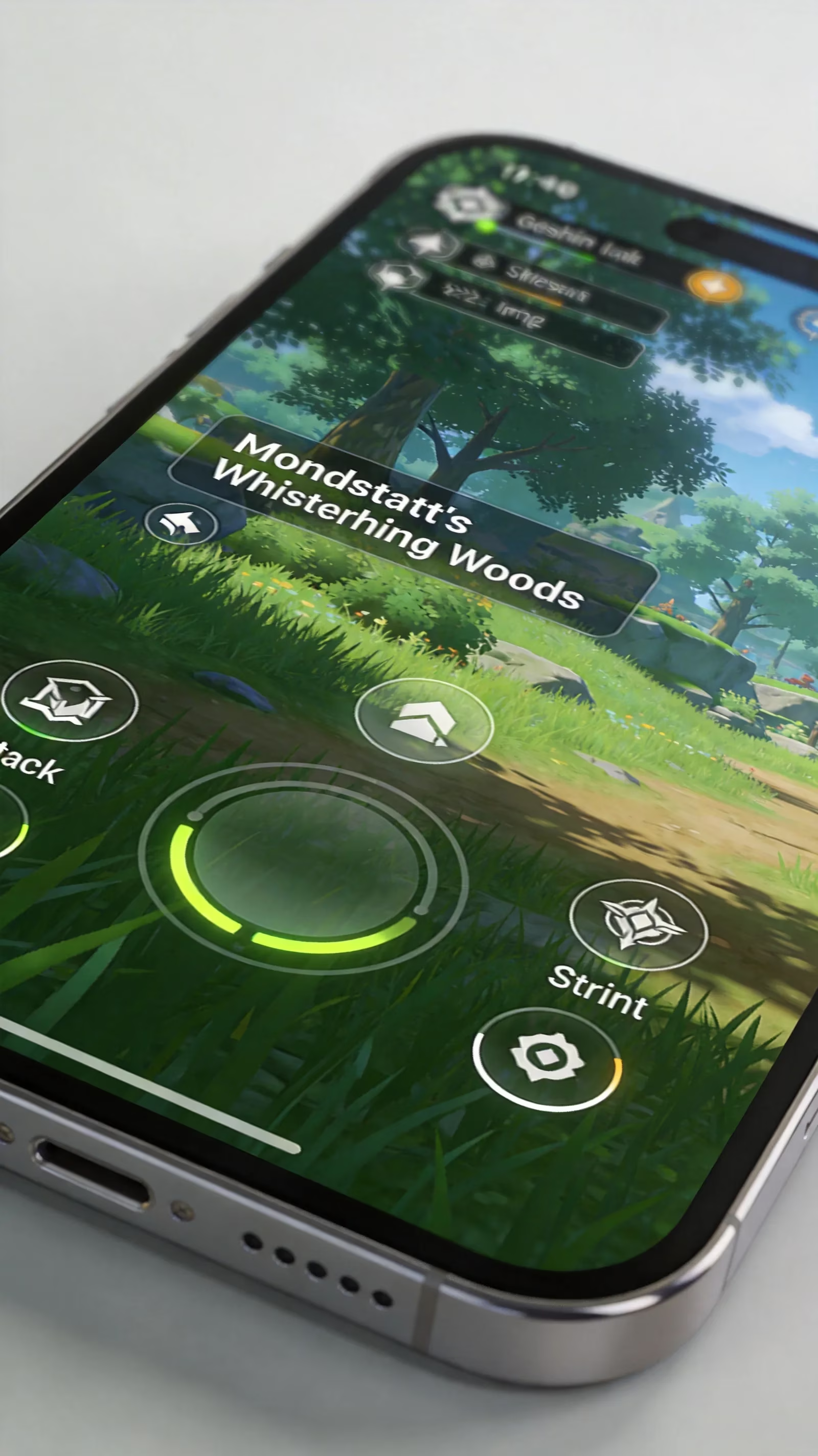
On mobile, the path is Settings > Controls > Touch Layout. This is where you adjust the position of on-screen buttons and the virtual joystick. You can move things around, but the actual button functions stay fixed. iOS and Android are mostly the same here, though iPhone and iPad users may notice slightly different default touch sensitivity.
On PlayStation, the main remap route is system-level rather than in-game: Settings > Accessibility > Controllers > Custom Button Assignments for DualSense Wireless Controller. That means your changes apply outside Genshin Impact too, not just inside it. If you’re using a DualSense Edge, you also get profile support through the controller’s own settings menu, which makes switching setups way easier.
Keyboard and Controller Remapping Capabilities
PC is where Genshin Impact custom controls really open up. You can rebind most actions, including character switching, Elemental Skill, Elemental Burst, sprint, interact, and menu shortcuts. A lot of players move character swap off the number row because reaching 1–4 mid-fight can feel awkward, especially during fast rotations.
Sprint is another common remap. Left Shift works, sure, but it can get annoying during long exploration sessions, so plenty of players move it to something like Caps Lock, Tab, or even a mouse button. Small change, big comfort upgrade.
Controller remapping on PC is more limited than keyboard, but you can still swap around face buttons, triggers, and bumpers through the in-game controller settings. Genshin also separates Controller Mode from Keyboard Mode, so once a gamepad is active, the game shifts to a layout designed for controller play.
Mouse settings matter more than some players expect. The game lets you tune camera sensitivity, aiming sensitivity for bow characters, and UI interaction speed separately. If you use characters like Ganyu, Tighnari, or Yoimiya, dialing in aim sensitivity can make a massive difference.
What Can Be Remapped
Not everything in Genshin Impact is fully customizable, and that’s worth knowing before you start rebuilding your layout.
Here’s the general breakdown:
-
Usually remappable
-
Elemental Skill
-
Elemental Burst
-
Character swap
-
Sprint / dash
-
Jump / climb
-
Interact
-
Map and menu shortcuts
-
Wish menu
-
Co-op access
-
Gadget-related shortcuts
-
Usually fixed or only indirectly adjustable
-
Core movement on WASD or left stick
-
Camera control direction
-
Some platform-specific UI actions
Movement staying locked is rarely a real issue since most players are already used to standard movement controls. Camera direction is also fixed, though sensitivity sliders still give you room to fine-tune how it feels.
The 2026 platform support snapshot is better than it used to be. HoYoverse has added remapping support for functions that were previously locked, including party setup and gadget wheel access, which is especially helpful for puzzle-heavy exploration and quick utility swaps in combat.
Genshin Impact Custom Controls by Platform
Different devices need different solutions. A setup that feels amazing on PC might be awkward on touch controls, and a PlayStation workaround won’t always translate cleanly to mobile. If you want the best results, it helps to think platform-first instead of chasing one “perfect” universal layout.
| Platform | Native Remapping | External Tools Needed | Max Profiles | Controller Support |
|---|---|---|---|---|
| PC | Full keyboard + partial controller | Optional (Steam Input) | Unlimited via config files | Native + third-party |
| Mobile | Touch layout only | Required for controllers | 3 saved layouts | Limited native support |
| PlayStation | System-level only | DualSense Edge profiles | Up to 3 (Edge controller) | Native DualSense/DualShock 4 |
PC custom keybind setup
On PC, the control menu is split into categories like Movement, Combat, Camera, Shortcuts, and Social. Each action shows its current keybind, and if you click it, the game prompts you to enter a new key. If that key is already in use, Genshin flags the conflict so you can decide what to replace.
For players who want more than the in-game menu offers, Steam Input is a big deal. It lets you build layered setups, assign multiple actions to the same button, and create mode shifts where a held modifier changes what other buttons do. That can seriously cut down finger travel during high-speed rotations.
Mouse tuning is worth doing carefully instead of just guessing. Try testing with a bow unit first, since aimed shots expose bad sensitivity settings immediately. Melee-focused teams usually feel better with a faster camera, while bow-heavy teams need tighter precision. The good news is Genshin separates those values, so you don’t have to settle for one compromise setting.
Controller mode on PC switches in automatically when the game detects a pad. It also changes the on-screen prompts to match the controller type, whether that’s Xbox-style or PlayStation-style icons. You can swap between keyboard and controller on the fly just by using the other input, though that can sometimes cause prompt flicker if you do it constantly.
Mobile custom controls setup
Mobile is less about rebinding and more about repositioning. In the touch layout editor, you can drag the virtual joystick, attack button, skill button, burst button, and other UI elements to better spots on the screen. The functions themselves don’t change, but the placement absolutely can.
That matters a lot more than it sounds. A good mobile layout reduces thumb travel and keeps your most-used actions close together. If your attack, dash, and skill buttons are too spread out, combat starts feeling sluggish fast.
A few practical layout tips:
-
Keep normal attack, Elemental Skill, and dash within easy thumb reach.
-
Move lower-priority buttons like map or menu access toward the outer edges.
-
Adjust around your grip style, not someone else’s screenshot.
-
Test the layout in actual combat, not just while standing in town.
Because of that, mobile players usually need third-party mapping apps if they want to use a physical controller. These apps simulate touch input when you press controller buttons. They work, but they can add a little input delay, and setup takes time.
PlayStation custom controls setup
On PlayStation, most button remapping happens outside the game. The built-in Genshin controller menu is mainly for things like camera sensitivity, aim sensitivity, vibration, and some comfort settings. If you want to fully change button assignments, you’ll usually need to do it through the console’s accessibility settings.
That system-wide remap works well enough, but there’s a catch: it affects every game, not just Genshin Impact. So if you swap buttons around for Genshin, you may need to undo those changes before jumping into something else.
The in-game settings still matter, though. You can tweak:
-
Camera sensitivity
-
Bow aiming sensitivity
-
Vibration intensity
-
Adaptive trigger behavior on PS5
The DualSense adaptive triggers can feel immersive during bow charge shots, but not everyone likes the extra resistance. If it starts getting in the way, turning it off is a perfectly reasonable call.
If you own a DualSense Edge, things get much better. The controller supports up to three saved profiles, and you can switch between them using the controller itself. That’s ideal if you want one profile for combat, one for exploration, and maybe another for comfort or accessibility. Without an Edge, PS5 system remapping still works as a fallback, but it’s slower to change and only stores one active custom setup at a time.
Best Custom Controls in Genshin Impact
The best Genshin Impact custom controls aren’t just about speed. They’re about making the game feel natural. A strong setup puts your most-used actions where your hands already want to go, keeps related actions grouped together, and cuts down on awkward finger stretches.
Combat-first layout logic
If your priority is Abyss clears, boss fights, or tight reaction windows, your layout should focus on combat flow first.
The biggest improvement for many keyboard players is moving character swaps off the number row. A common setup is:
-
Character 1 → Tab
-
Character 2 → Q
-
Character 3 → E
-
Character 4 → R
That keeps all four swaps close to your left hand’s resting position, which makes rotations feel much smoother. No more reaching up to 3 or 4 in the middle of a combo.
Elemental Skill and Burst also deserve premium placement. A lot of players bind them to side mouse buttons, especially if they use a gaming mouse. That frees up the keyboard for movement and swaps while making combat inputs feel faster and more tactile.
Sprint is another huge one. Since you use it constantly in both combat and movement, putting it on a more comfortable key can save your hand over time. If you do dash-canceling often, especially on characters like Hu Tao, this change can be a serious quality-of-life boost.
Exploration-first layout logic
Not every session is about sweating through Abyss timers. Sometimes you’re just farming, climbing, gliding, and solving puzzles, and in those cases, comfort matters more than raw combat speed.
Exploration-focused layouts usually prioritize:
-
Easy map access
-
Comfortable sprinting
-
Quick gadget use
-
Less hand strain during long movement sessions
Some players like binding map access to a single easy key so they don’t need to open the Paimon menu first. Gadget wheel access is another smart thing to move somewhere convenient, especially if you swap tools often while exploring.
Jump can also be worth adjusting if your platform allows it. Players who spend a lot of time climbing sometimes bind jump to mouse wheel scroll for repeated jumps, though that does mean giving up the wheel’s default zoom behavior. It’s niche, but for some people it feels way better.
One thing you usually can’t change much is environmental interaction. The F key on PC still handles opening chests, talking to NPCs, and picking up items in most cases. So instead of remapping it, the better move is building your layout around keeping F easy to reach.
Bow aim, gadget shortcuts, and comfort fixes
Bow users need a little extra attention when setting up controls. Aiming feels very different from normal melee combat, and a bad layout shows up immediately.
A few adjustments help a lot:
-
Bind aim to a mouse button if that feels faster and more natural
-
Lower or fine-tune aimed-shot sensitivity for better weak-point accuracy
-
Keep camera reset or recenter functions easy to access if available
-
Put frequently used gadgets on reachable shortcuts
Gadget access got better with the 2026 update, since direct hotkeys for individual gadgets are now available instead of forcing wheel-only navigation in every case. That’s a pretty big usability win, especially for players who use NRE (Menu 30) or puzzle gadgets all the time.
Accessibility matters here too. If a layout causes wrist strain, thumb fatigue, or pinky pain, it’s not a good layout no matter how “optimal” it looks on paper. Sometimes the best custom controls are simply the ones that let you play longer without discomfort.
Genshin Impact Custom Control Problems
Even a well-tuned setup can run into issues. Some are game-side quirks, some come from the platform, and some are just weird conflicts between input methods. Either way, it helps to know the common problems before they start wasting your time.
Controls not saving
One of the more annoying issues, especially on PC, is when your control settings don’t stick after restarting the game. This usually comes down to config file permissions or cloud sync conflicts.
Genshin Impact stores control settings locally, and if cloud syncing pulls in an older version, your newer setup can get overwritten. That’s why it sometimes feels like the game “forgot” your changes.
Try this:
-
Check the Documents\Genshin Impact folder
-
Make sure the config file has proper read/write permissions
-
Temporarily disable cloud sync if the issue keeps happening
-
Keep a note or screenshot of your preferred keybinds just in case
Controller not detected
Sometimes Windows sees your controller just fine, but Genshin doesn’t. This is especially common with PlayStation controllers that rely on DirectInput instead of XInput.
Genshin Impact mainly prefers XInput devices, which is why Xbox controllers tend to work more smoothly out of the box. DualShock 4 and DualSense pads may need translation software to behave properly on PC.
A few fixes worth trying:
-
Update Windows and your controller drivers.
-
Test the controller in another game first.
-
Use DS4Windows for PlayStation controllers.
-
If launching through Steam, check whether Steam Input is interfering.
Input lag and dead zone
Input lag feels like your character reacts a fraction too late after every press. Dead zone issues show up when analog stick movement doesn’t register until you push farther than expected. Both are rough in Genshin, especially if you care about precise dodges or platforming.
A lot of the time, this isn’t actually Genshin’s fault. Wireless controllers add latency compared to wired ones, V-Sync can introduce extra delay, and heavy background apps can make the whole game feel less responsive.
What usually helps:
| Problem | Likely Cause | Fix |
|---|---|---|
| Input delay | Wireless latency | Use wired controller connection |
| Sluggish response | V-Sync | Disable V-Sync if possible |
| Inconsistent movement | Large dead zone | Adjust dead zone in controller software |
| Random stutter | Background CPU load | Close browsers, overlays, streaming apps |
Smaller dead zones improve responsiveness, but if your controller has stick drift, going too low can create its own problems. It’s a balancing act.
Wrong prompts and mode conflicts
This one is pretty common if you switch between keyboard and controller a lot. Genshin automatically changes prompts based on the last device it detected, so if you touch the mouse while using a controller, the game may suddenly swap all the on-screen icons.
That’s mostly just annoying, but sometimes it can create actual confusion during combat. You might also run into mode conflicts where keyboard and controller inputs overlap, like holding W while nudging the left stick and getting weird diagonal movement.
The easiest fix is to stick to one primary input method during serious gameplay. If the prompts are wrong, press a button on the device you want to use and wait a second for the UI to catch up. If the game keeps flipping back and forth or starts acting strangely, a full restart usually clears it.
Advanced Genshin Impact Control Optimization
If you really want to push your setup further, there are a few advanced tools and tricks worth looking at. These aren’t mandatory, but for dedicated players, they can make the controls feel much more refined.
Steam Input, mobile overlays, and extra tuning
Steam Input is one of the best advanced tools for PC players. If you launch Genshin through Steam, you can use features like radial menus, mode shifting, gyro aiming, and custom action layers.
Mode shifting is especially strong in Genshin. You can make one button do one thing normally, then something else while holding a modifier. For example, face buttons could handle character swaps by default, but while holding left bumper, those same buttons could trigger a different set of actions. It’s a really efficient way to fit more functions into a comfortable layout.
Gyro aim is also worth mentioning for bow characters. With a DualSense or DualShock 4, Steam Input can use motion controls for fine aiming while the right stick handles larger camera movement. That hybrid setup feels surprisingly good once you get used to it.
On mobile, controller overlays are the main workaround. Apps like Mantis Gamepad Pro and Octopus are common on Android, while iOS users usually have fewer options unless their device or software environment supports system-level mapping. These apps place invisible touch overlays over Genshin’s controls, then bind controller buttons to those spots.
The catch is precision. If the overlay placement is even slightly off, inputs can fail or trigger the wrong action. It’s best to test everything in the overworld before taking it into harder content.
Third-party tool risk warning
This part matters. Third-party remap tools can be useful, but they also come with some risk.
HoYoverse’s terms generally prohibit software that modifies the game, injects code, or automates gameplay. Most pure mapping tools don’t do that—they just simulate normal input at the OS or overlay level—so they sit in more of a gray area. Historically, that has meant low practical risk for simple remapping tools.
Still, you should be careful. The safest approach is:
-
Use officially supported settings whenever possible
-
Prefer OS-level or platform-level remapping tools
-
Avoid anything that advertises auto-aim, auto-rotation, or gameplay automation
-
Stay away from tools that hook directly into game memory
If a tool starts sounding like a cheat instead of a remapper, it’s not worth it.
Recommended remap examples
A lot of strong layouts share the same basic logic: keep high-frequency actions close, reduce finger travel, and move important combat inputs onto your strongest fingers.
Here are a few examples players often like:
-
PC keyboard + mouse
-
Character swaps → Q, E, R, T
-
Elemental Skill → Side Mouse Button 1
-
Elemental Burst → Side Mouse Button 2
-
Sprint → Space
-
Movement → WASD
-
Controller setup
-
Character swaps moved from D-pad to trigger + face button combinations
-
Left trigger acts as a modifier
-
Face buttons swap characters while modifier is held
-
Right trigger or another easy input handles sprint
That kind of setup keeps everything tighter and makes combat feel more fluid, especially if you play quickswap teams.
A few common FAQ-style answers are worth keeping in mind too:
- How do you reset controls?
Go to Settings > Controls > Restore Defaults.
- Can chat be rebound?
Yes, on supported platforms and input modes, chat can be assigned to another key.
- Can you swap between preset control schemes quickly?
Not natively in most cases. You’ll usually need to reconfigure manually or rely on profile tools like Steam Input or DualSense Edge profiles.
Conclusion
Getting your Genshin Impact custom controls right is one of those changes that doesn’t look flashy, but you feel it immediately. Better comfort, faster reactions, cleaner rotations—it all adds up. Whether you’re on PC, mobile, or PlayStation, a smart setup makes Teyvat a lot smoother to play through, and honestly, your hands will probably thank you for it.